Mobile SqeId SDK
SqeId SDK allows you to add authentication to your React Native application quickly and to gain access to user profile information. This guide demonstrates how to integrate Simas ID with any new or existing React application using the SimasID React Native SDK.
Mobile SDK
Configure Simas-ID
Get your Application Keys
When you connected with SimasID, a new profile was created for you, you will need some of the details from it to communicate with SimasID. You can get this details from any of our engineering/product representative.
You will need the following for each env (staging and production):
-
Client Id
-
SQE SDK Config file
- File Format: [Client Id].sqesdk.config
Install SQEID React Native SDK
Run the following command within your project directory to install the Simas ID React Native SDK.
Yarn :
yarn add @squantumengine/react-native-sqeid
or NPM :
npm install @squantumengine/react-native-sqeid
Please note: use the exact version, such as "1.0.2", during SDK installation.
Additionally, as we will be calling some UI components from the SDK, you need to add the following font assets to your project:
-
Add the font assets to the directory where you usually store fonts in your project. You can download the Montserrat fonts here.
-
For iOS, add a new reference to the fonts in Xcode under Copy Bundle Resources.
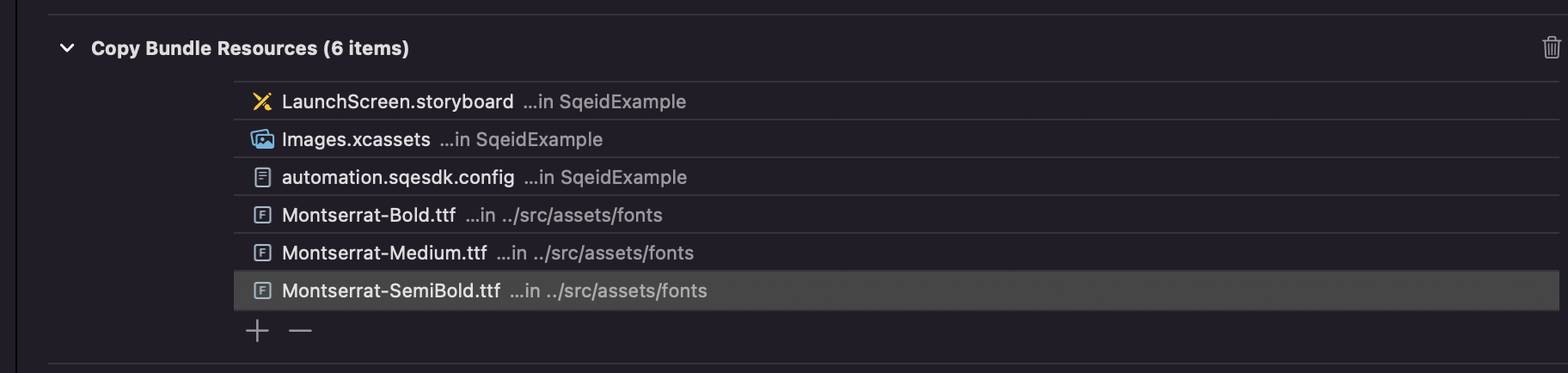
- Include the following three Montserrat fonts: Montserrat-Bold, Montserrat-SemiBold, and Montserrat-Medium.
Configure the AuthProvider Component
To integrate SimasID with your RN app, you can wrap the root component with AuthProvider which you can import from the SDK.
return (
    <AuthProvider clientId={clientId} isEnableSDK={true/false}>
      <App/>
    </AuthProvider>
  );
The AuthProvider component takes the following props as input:
- clientId: Which you can get from the SimasID engineering/product representative.
- isEnableSDK: This can disable the AuthProvider and render children without context. It defaults to
true, making all methods from sqeid unavailable.
AuthProvider stores the authentication state of your users and the state of the SDK — whether SimasID is ready to use or not. It also exposes helper methods to log in and log out your users, which you can access using the useAuth() hook.
Configure Android Project
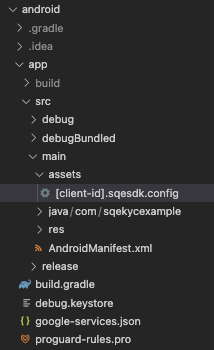
Add SDK config file in Android project
This configuration file holds encrypted settings tailored to each client. Kindly integrate the file in the Android project by including the specified configuration file. This files should be stored in assets folder of the app.
Two configuration files are supplied—one for staging and one for production. To identify the correct environment, refer to the configuration file name, as the Client Id varies for each environment.
Add Native SDK dependency
React Native SDK depends on Android Native SDK which stored in our local Maven repository. For this to work you need to specify the url to the repository in android build.gradle file:
allprojects {
    repositories {
        maven {
            url "file://${rootDir}/../node_modules/@squantumengine/react-native-sqeid/android/repo"
        }

        google()
        mavenCentral()
        jcenter()
    }
}
Configure iOS Project
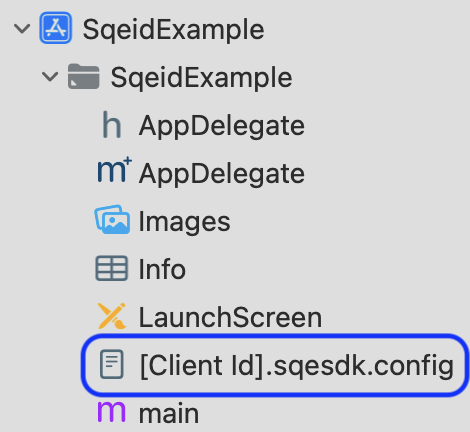
Add SDK config file in xcode project
This config file contains encrypted configs which specific for every client, so please attach the file into your xcode project by addding the given config file in the project.
There are two provided config files (1 for staging and 1 for production), you can refer to the config file name to find correct env, since the Client Id for every env is different.
Configure custom URL scheme for callback
The callback URL are the URL that SqeId invokes to redirect back to your app. SqeId invokes the callback URL after authenticating the user, and the logout URL after removing the session cookie.
Go to Xcode, go to the Info tab of your app target settings. In the URL Types section, click the + button to add a new entry. There, enter SqeId into the Identifier field and $(PRODUCT_BUNDLE_IDENTIFIER) into the URL Schemes field.

This registers your bundle identifier as a custom URL scheme, so the callback URL can reach your app.
Add Face ID Usage Description in info.plist
This sdk uses biometrics, include the NSFaceIDUsageDescription key in your app’s Info.plist file. Without this key, the system won’t allow your app to use Face ID.
Add some configuration in Podfile
If you are not using Sentry and Datadog library in your app
Add this pre_install hook in your Podfile:
target '<Your Target Name>' do

  # Put below `use_react_native` method

  pre_install do |installer|
    $dynamic_frameworks = [
      'DatadogCore',
      'DatadogInternal',
      'DatadogLogs',
      'Sentry'
    ]
    installer.pod_targets.each do |pod|
      if $dynamic_frameworks.include?(pod.name)
        puts "Overriding the build_type method for #{pod.name}"
        def pod.build_type;
          BuildType.new(:linkage => :dynamic, :packaging => :framework)
        end
      end
    end
  end

  post_install do |installer|
    $datadog_frameworks = [
      'DatadogCore',
      'DatadogInternal',
      'DatadogLogs'
    ]
    installer.pods_project.targets.each do |target|
      if $datadog_frameworks.include?(target.name)
        target.build_configurations.each do |config|
          config.build_settings['BUILD_LIBRARY_FOR_DISTRIBUTION'] = 'YES'
        end
      end
    end
  end

end
If you are using Sentry or Datadog library in your app
Set env in your Podfile:
# Put above your target
ENV['USE_ALL_SQE_XCFRAMEWORKS'] = '1'

target '<Your Target Name>' do
SSO Flow
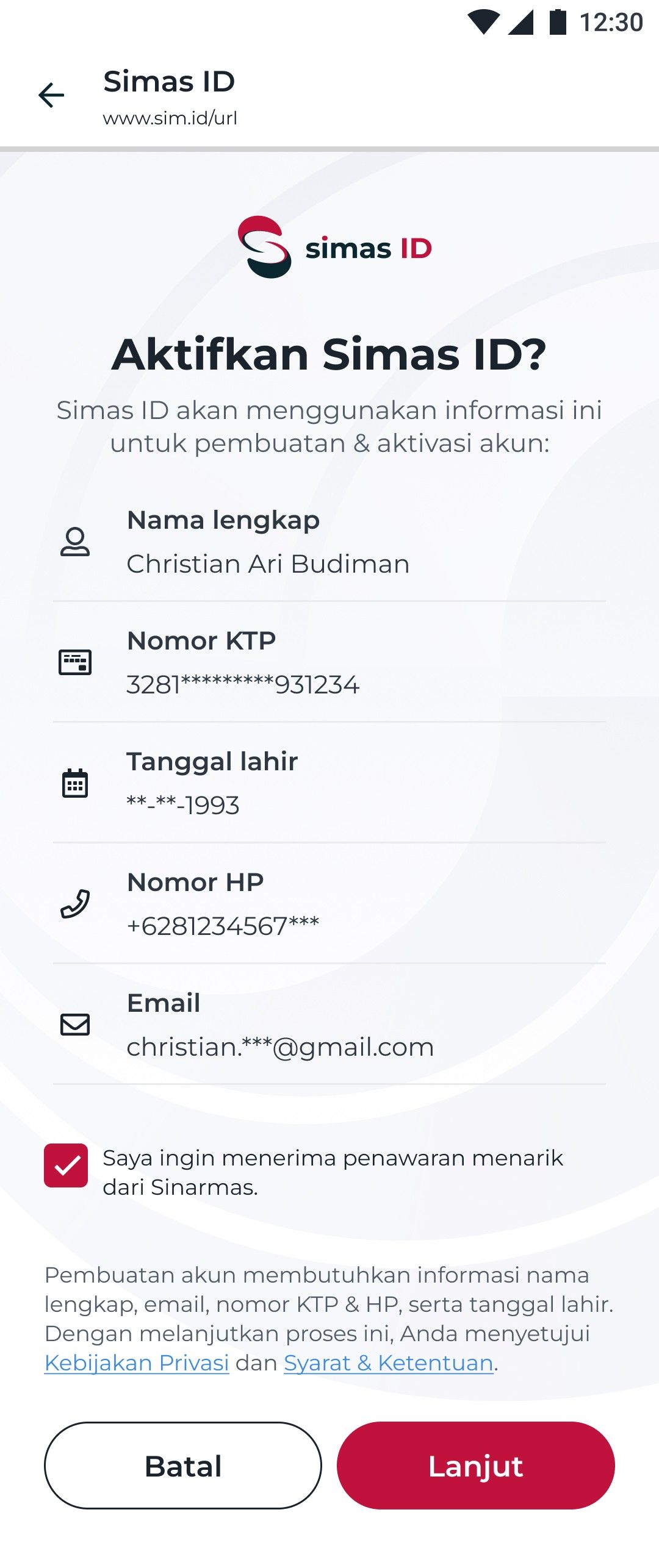
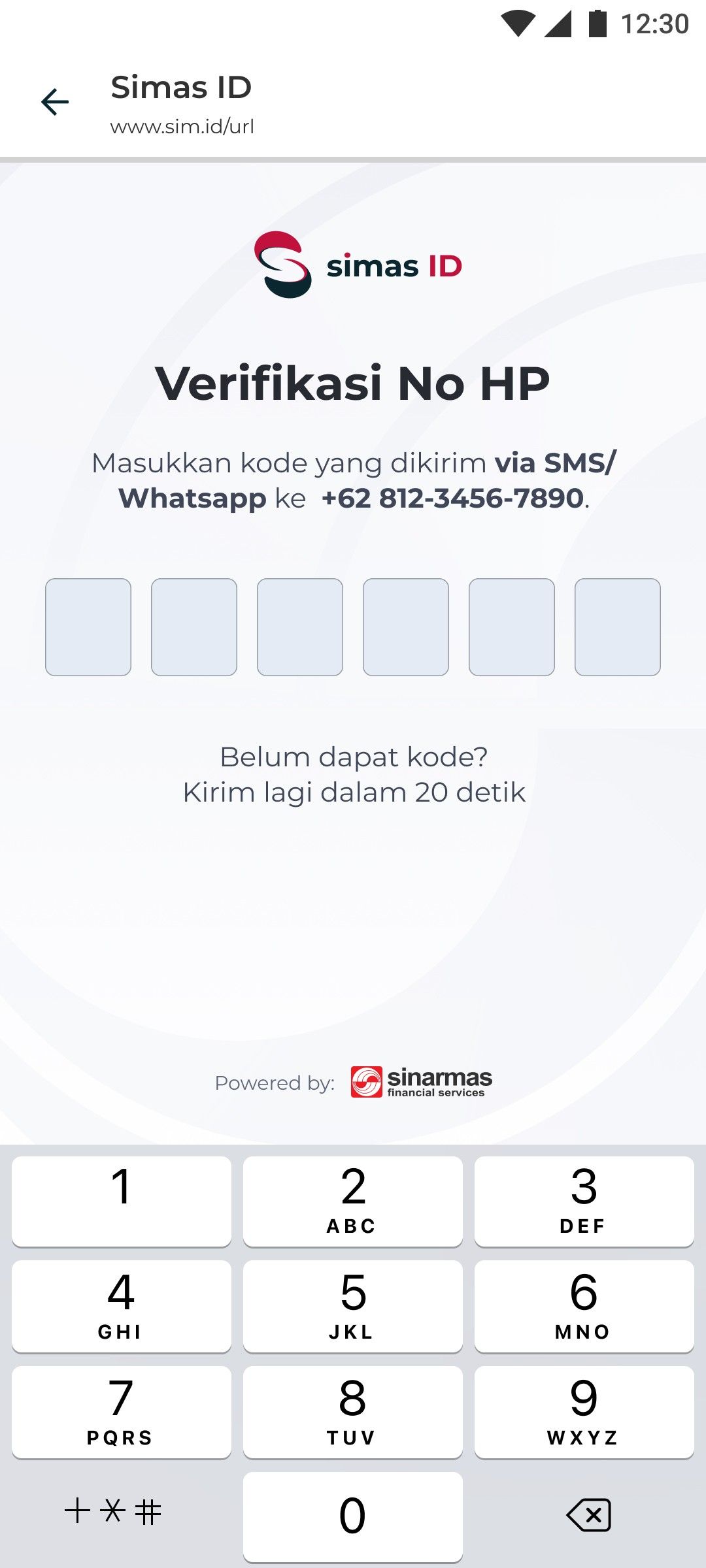
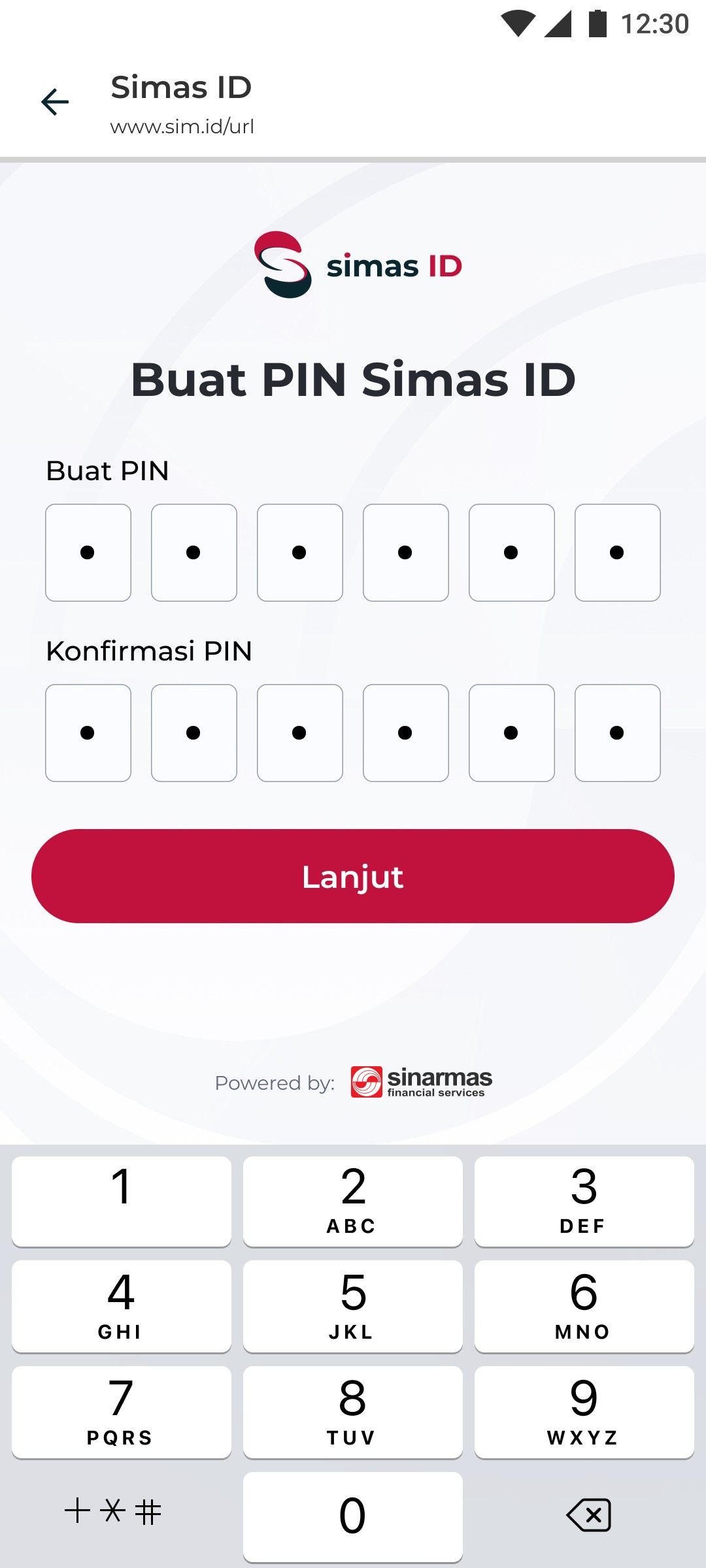
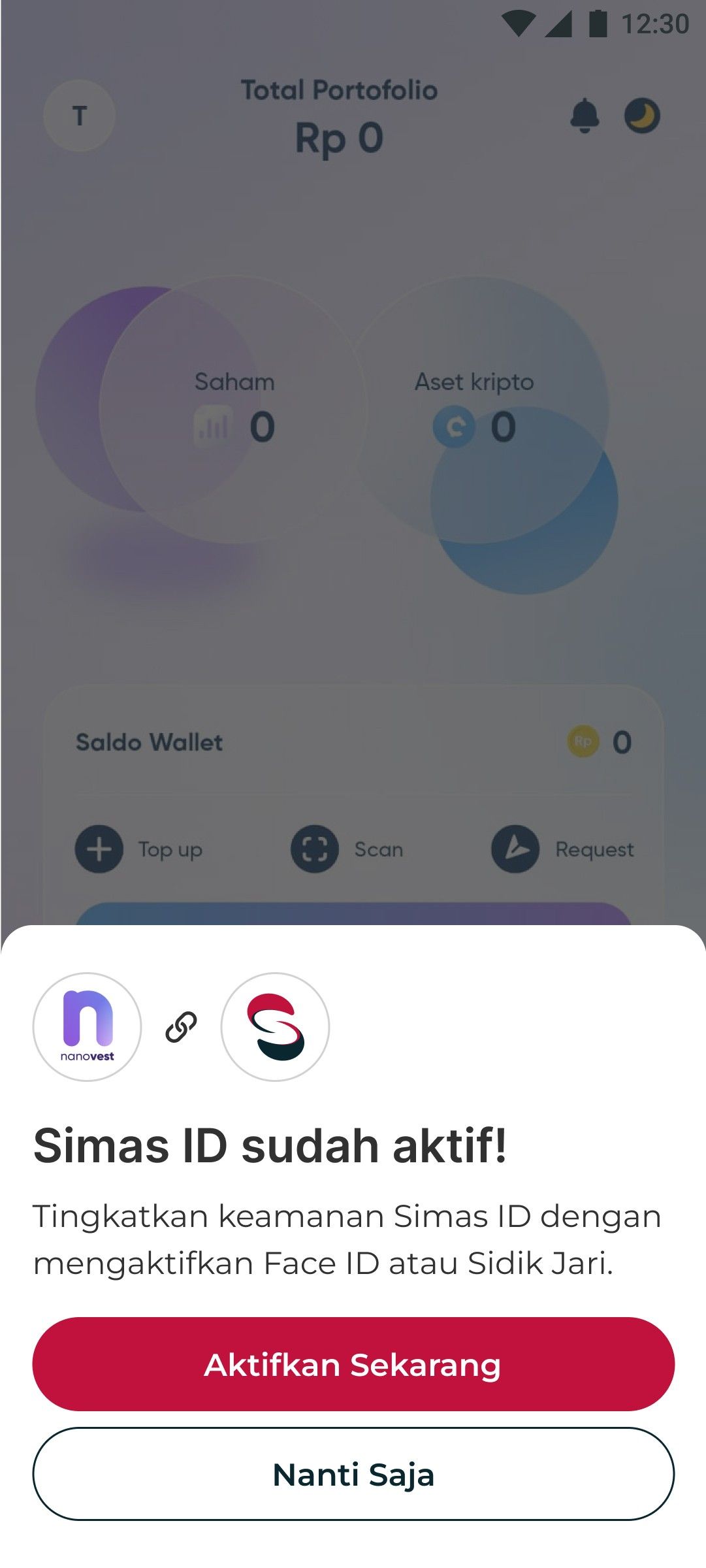
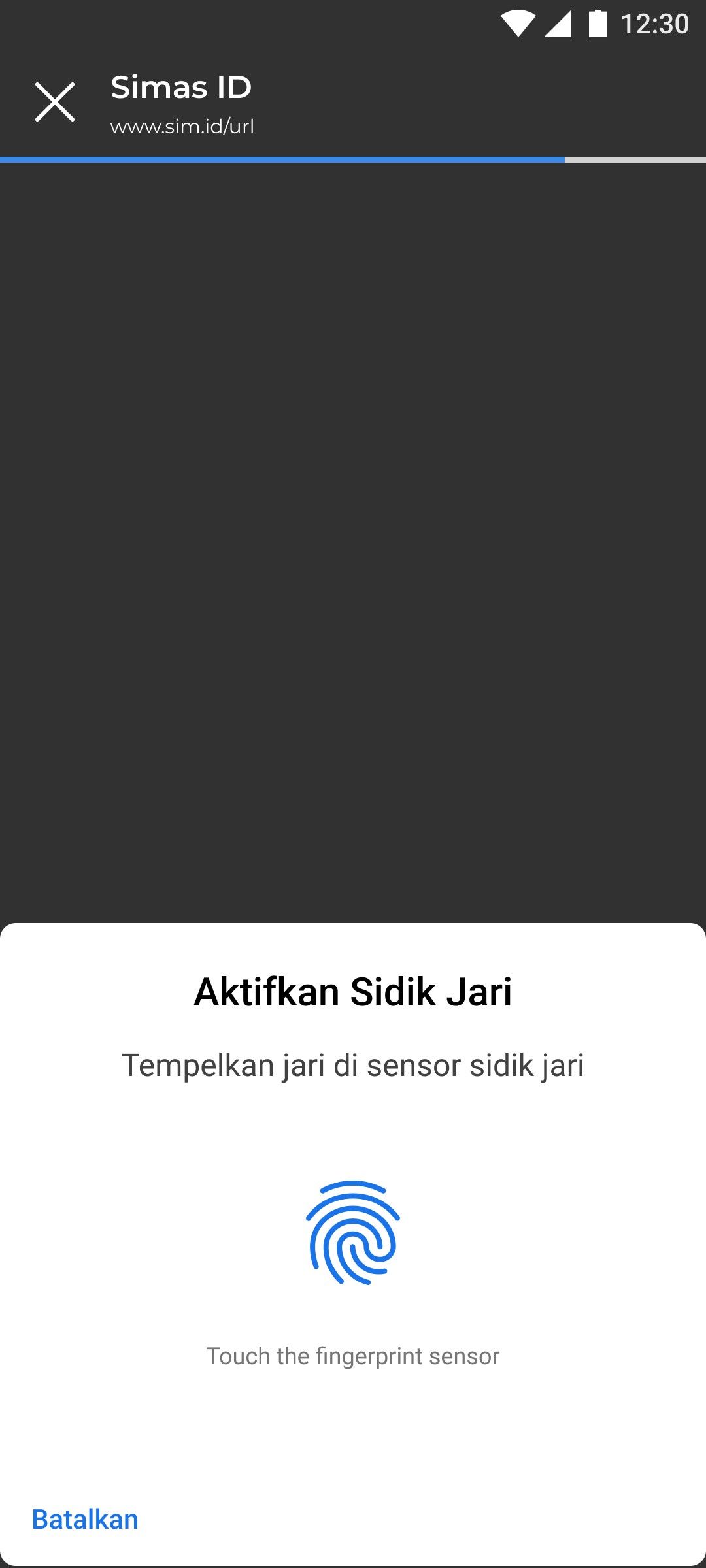
SqeId SDK provides you with quick access tools to authenticate the user, using One Time Password, that you can deliver via SMS, WhatsApp or Email. Basically we provide 3 flows which are Activation, Login and Logout flow.
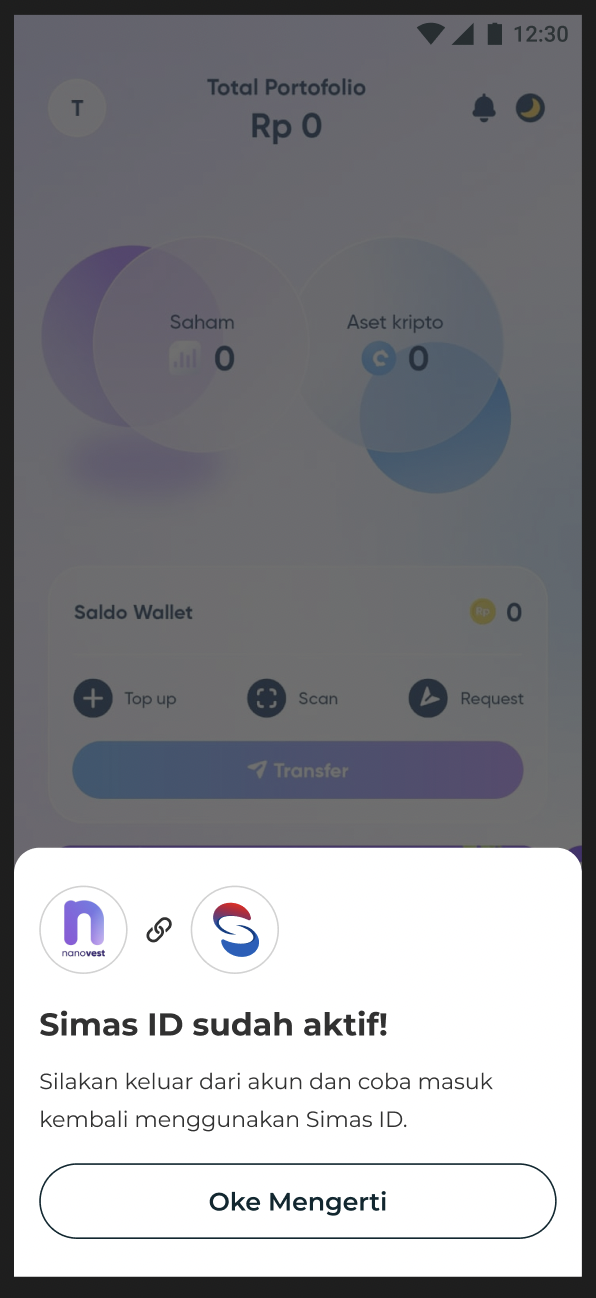
Activation Flow
 |  |  |  |  |  |  |
|---|---|---|---|---|---|---|
| SimasID Activation | PII Data(Shown if data provided) | OTP Validation | PIN Creation | SimasID Success | Biometric Setup | SimasID Is Already Registered |
Call isSimasIdActivated(username, piiData, isFromUserAction, timeout)
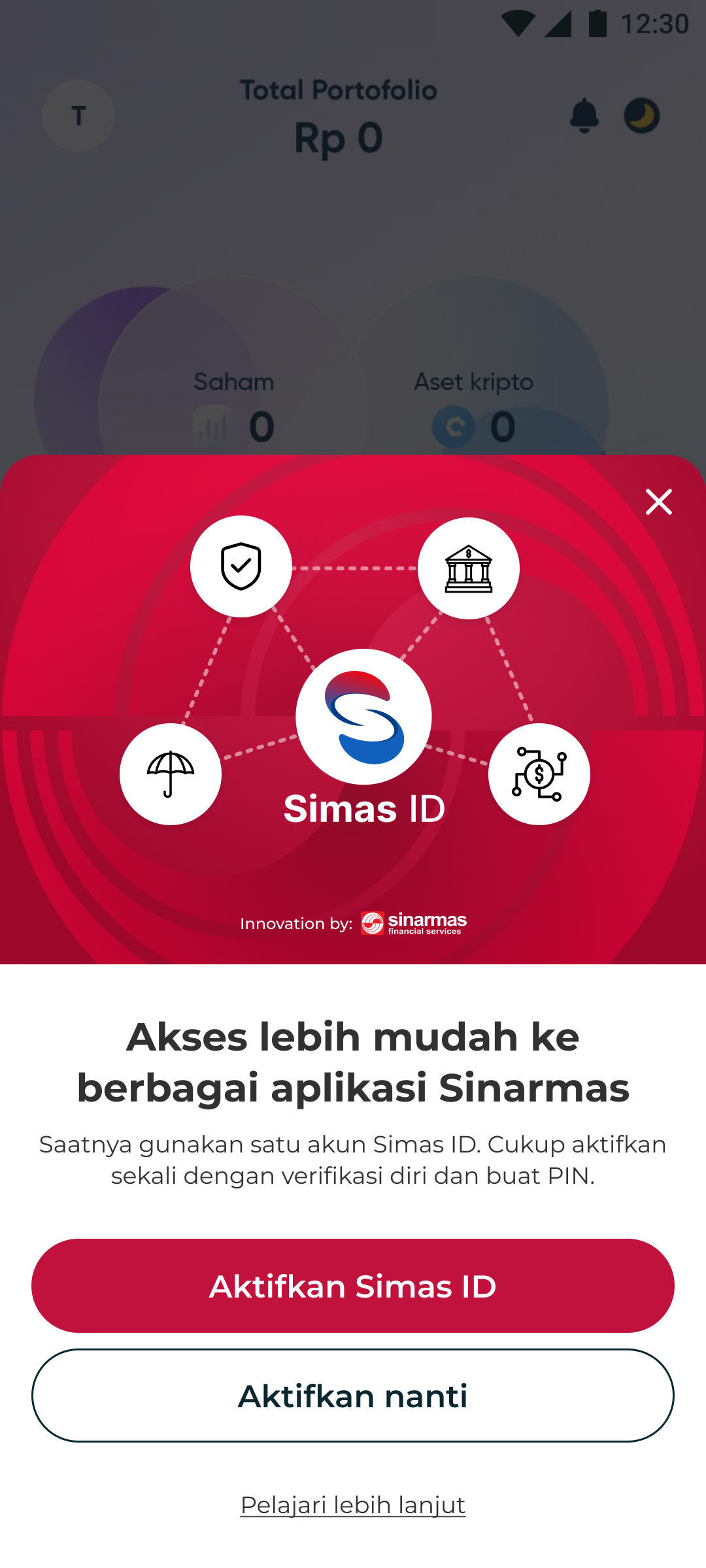
It is to check if the given username already exist in SimasID or not, if user doesn’t exist then it will show SimasID Activation bottom sheet, If it already exists, it will show the registered bottom sheet.
It requires the following params:
-
username: Credential of the end-user who has been logged in, such as user’s phone number
-
piiData: PII data from customer who has been through KYC flow, this PII data to be shared to SimasID and can be used by other BUs. Since it’s optional, if piiData is not available then just pass empty object.
- piiData is object or key-value data
-
isFromUserAction: A boolean parameter that specifies whether the method was triggered manually by the user (e.g., from a button press). When set to true, the SDK displays a bottom sheet for registered users. When false, the bottom sheet is not shown for registered users, only for those who are not yet registered.
-
timeout: Timeout in milliseconds. If not set, the default value will be 20 seconds provided by the SDK.
Request Parameters
| Field | Value | Validation | |
|---|---|---|---|
username | “085959011905” | Required, phone number format, e.g. 08xxx, 62xxx, +62xxx. | |
piiData | {key-value} | Optional | |
| Key | Value | Validation | |
client_id | “sampleclientid“ | Required, string format | |
date_of_birth | “04-07-1988“ | Required, dd-mm-yyyy format | |
email | “christian@gmail.com” | Required, email format. | |
full_name | “Christian Ari Budiman” | Required, string format | |
nik | “3281829382931234” | Required, 16 digits format | |
phone_number | “085959011905” | Required, phone number format, e.g. 08xxx, 62xxx, +62xxx. | |
isFromUserAction | true | Required, boolean, e.g. true or false. | |
timeout | 20000 | Optional, integer, e.g. 10000, 30000. | |
It will return the user with credentials after the flow is completed in credentialsCallback (Please see Retrieve Credentials Flow section)
import React, { useState } from 'react';
import { useAuth } from '@squantumengine/react-native-sqeid';

const { isSimasIdActivated } = useAuth();

const [piiDataObject, setPiiDataObject] = useState({
    client_id: "sampleclientid",
    date_of_birth: "02-04-1995",
    email: "john@mailinator.com",
    full_name: "John Doe",
    nik: "1234567890123456",
    phone_number: "085959011905",
});

const onActivateSimasIdButtonTapped = () => {
  // Show app loading here spinner if needed

  isSimasIdActivated(config.username, piiDataObject, true, 20000)
    .then(() => {
     // Hide app loading spinner on success
    })
    .catch((error) => {
    // Hide app loading spinner on error or timeout
    });
};
Error Response
SDK Error Codes
| Code | Message | Description |
|---|---|---|
| network_error | The Internet connection appears to be offline. | When no internet connection |
| DATE_OF_BIRTH_INVALID | The inputted date of birth is not in the correct format; it should be in the format dd-mm-yyyy. | Invalid format date of birth format |
| NIK_INVALID | The inputted NIK is shorter than 16 digits. | must be exactly 16 digits |
| EMAIL_INVALID | The email is in an incorrect format. A valid email must include @email.com. | Invalid format email user |
| PHONE_NUMBER_INVALID | The phone number is in an incorrect format. A valid phone number should either start with '0,' be prefixed with a '+,' or begin with a country code. | Invalid format phone number |
BE Error Codes
| Code | Message | Description |
|---|---|---|
| unexpected_error | Something Went Wrong | Server unexpected error |
| invalid_request_body | Invalid Request, Please Check Your Request Body | Request payload is not valid |
| invalid_phone_number | Invalid Phone Number | Phone number format is invalid |
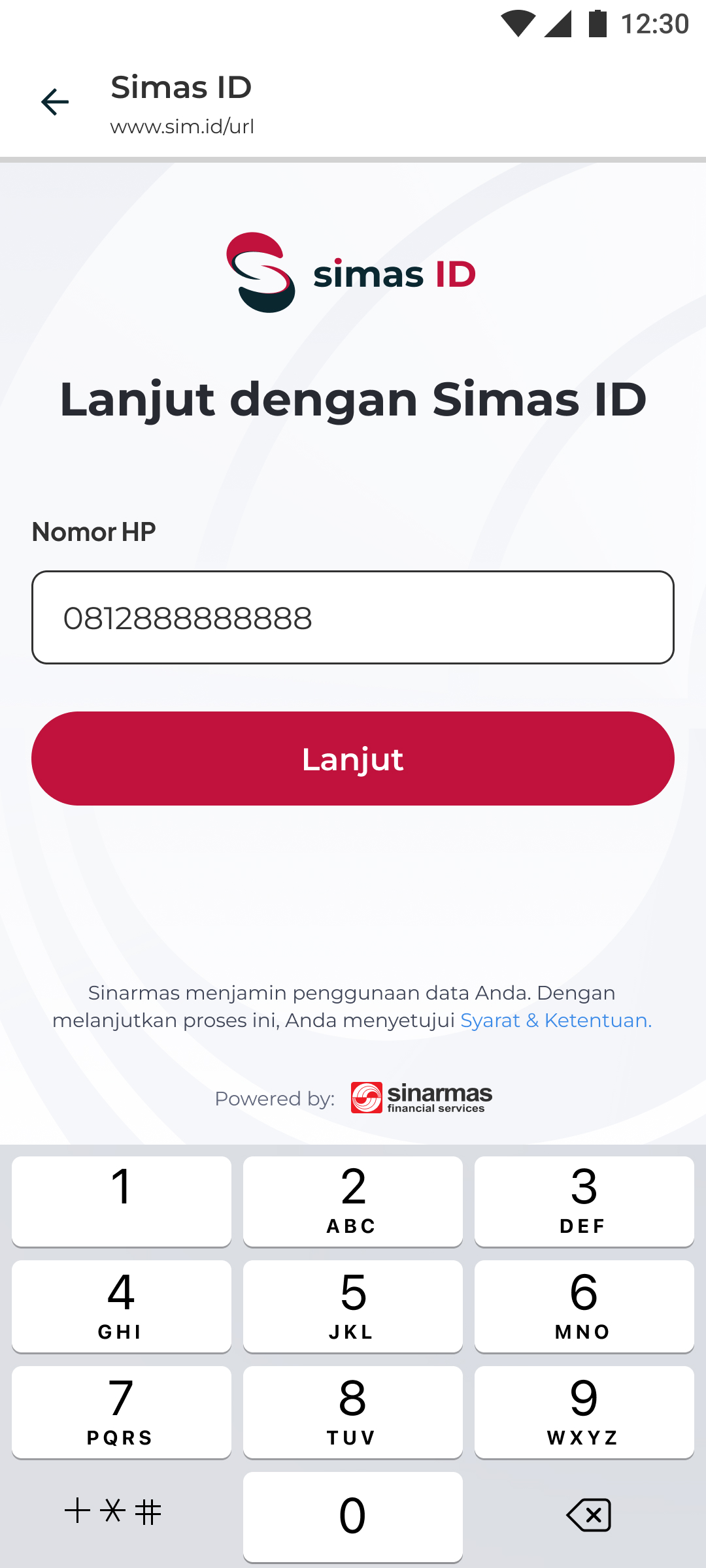
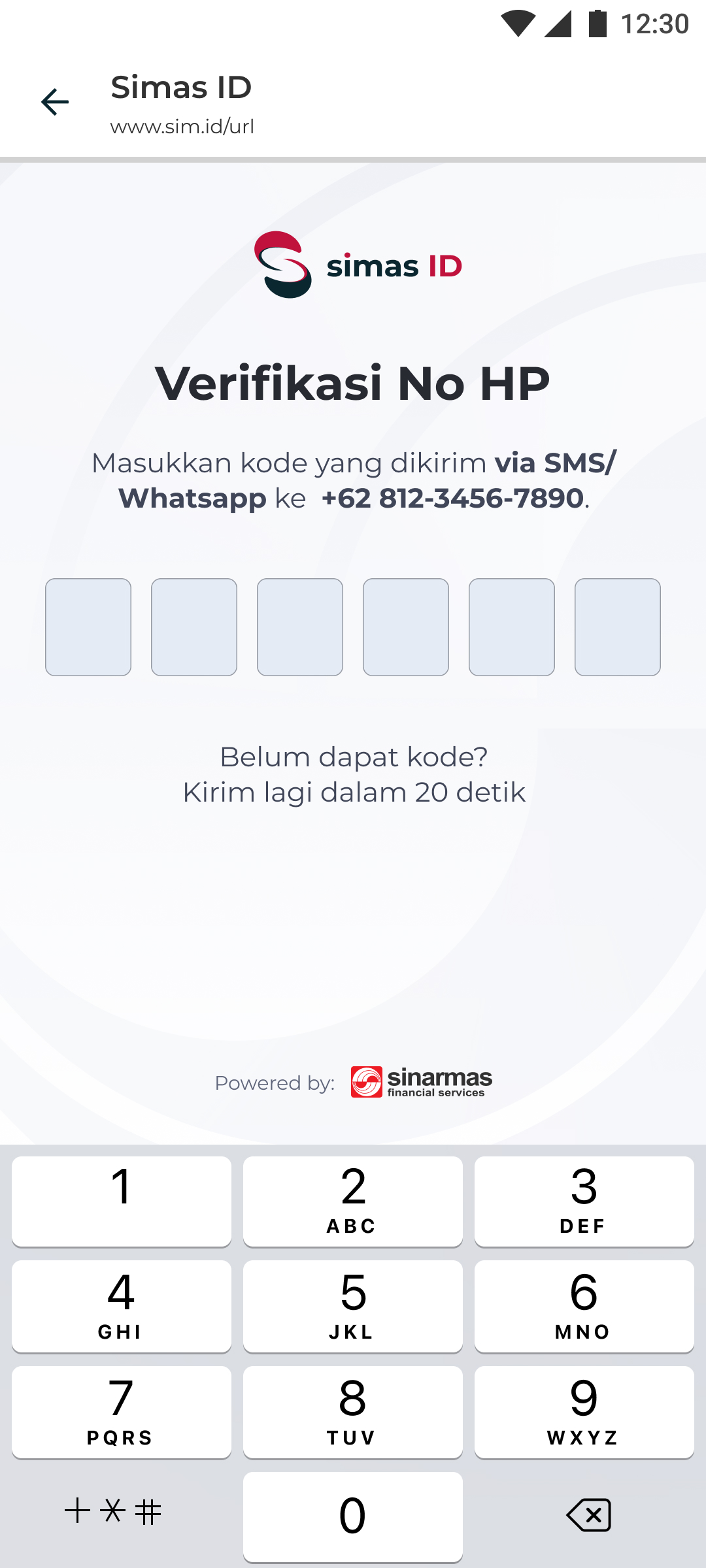
Login Flow
 |  | 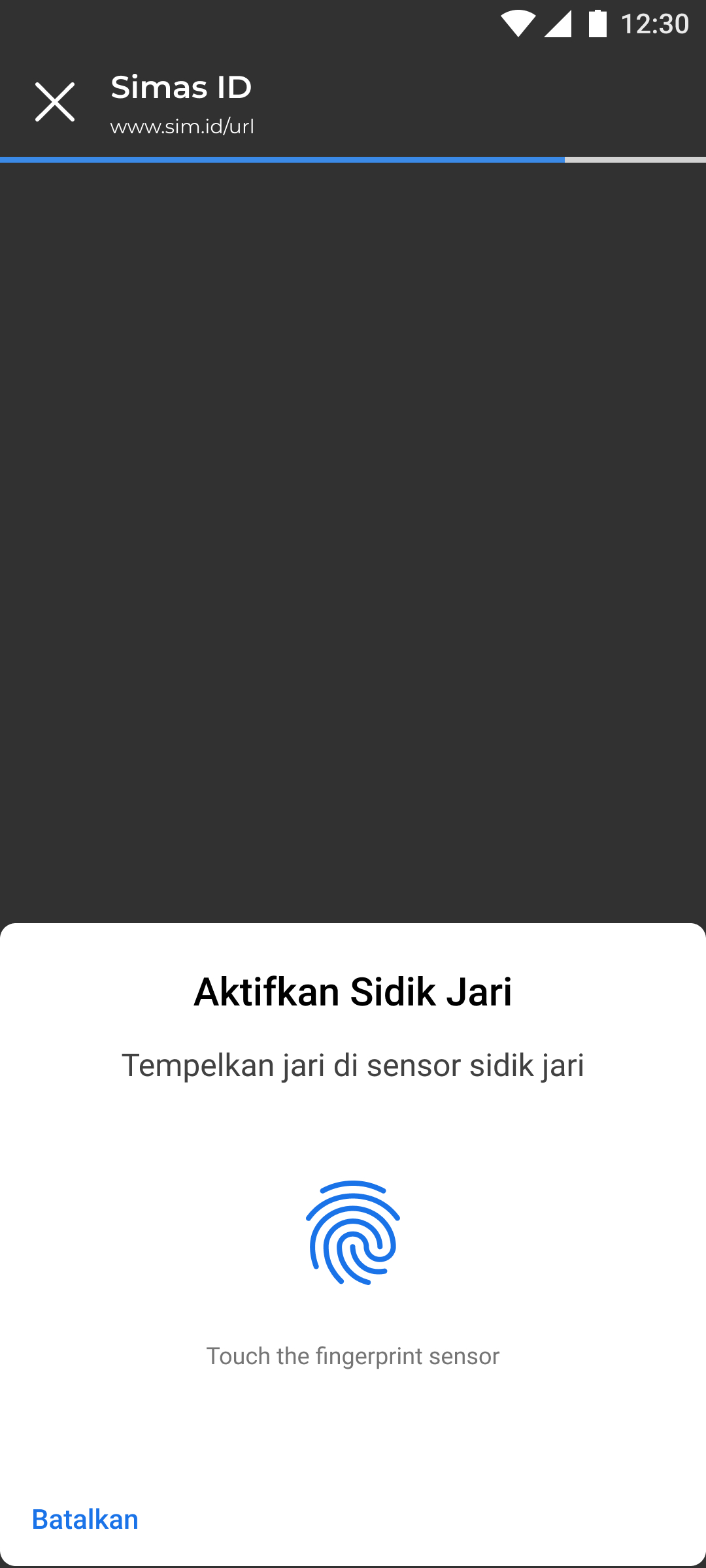 | 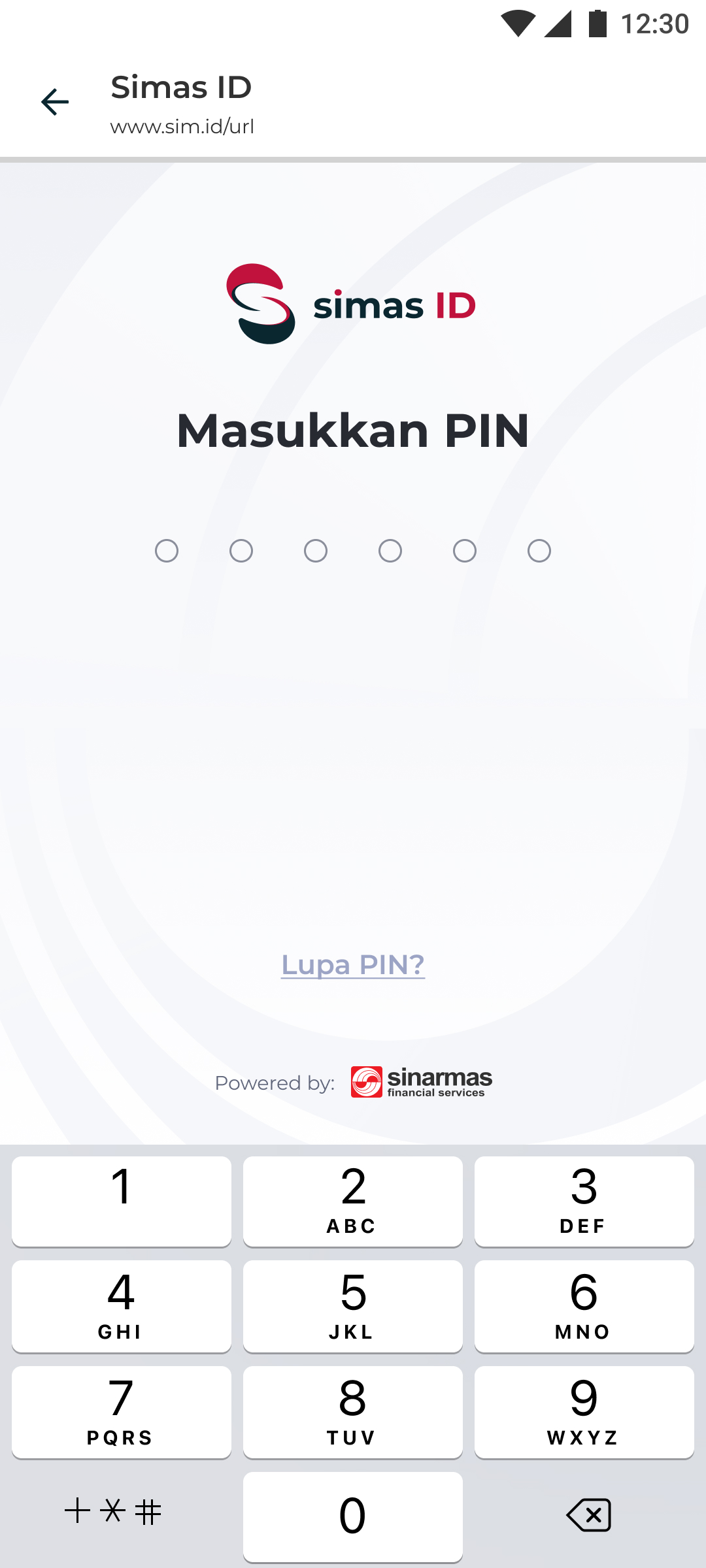 |
|---|---|---|---|
| Input Phone Number | OTP Validation | Biometric Validation | PIN Validation (if biometric fails) |
Call login(username)
This method is to authorize in an already existing user, navigates to the browser and does the authentication process
It will returns the user with credentials after the flow is completed in credentialsCallback (Please see Retrieve Credentials Flow section)
Biometric Validation will be first priority, if it fails then will redirect user to PIN Validation
A parameter can be added for the purpose of the re-login flow that requires biometric validation (not just a PIN), but it's optional :
- username: Credential of the end-user who is either logged in or not logged in yet, such as user’s phone number
import { useAuth } from '@squantumengine/react-native-sqeid';

const { login } = useAuth();

const onLoginButtonPressed = async () => {
    await login(username);
};
Retrieve Credentials Flow
Call credentialsCallback(handleCallbackResult)
For retrieving the credentials after login or activation flow, we should call credentialsCallback with a method to subscribe when credentials is created or updated (for change phone number flow). This callback also might return error if there is an error in the middle of login or activation flow.
It is a good idea to call saveCredentials() on a successful response. This will store your tokens into the storage.
If you use saveCredentials() then the refreshment of token will be handled in sdk, so you don’t need to check the expiry of token. And you can also use credentials and invalidateCredentials() for maintaining the credentials from storage.
But if you don’t use it, you can still refresh the token by calling refreshToken() and invalidate the token by calling invalidateToken() with passing refreshToken value.
import { useAuth } from '@squantumengine/react-native-sqeid';

const { credentialsCallback, saveCredentials } = useAuth();

const handleCallbackResult = (credentials, error) => {
    if (credentials) {
        saveCredentials(credentials);
    } else {
    // do something according to the error code
    }
};

credentialsCallback(handleCallbackResult);
Sample response of the credentials:
{
    "expiresAt": 1688726613,
    "expiresIn": 1000,
    "idToken": "xxxxxxx",
    "accessToken": "xxxxxxx",
    "scope": "openid email profile",
    "refreshTokenExpiresIn": 604800,
    "refreshTokenExpiresAt": 1689330413,
    "tokenType": "Bearer",
    "refreshToken": "xxxxxxx"
}
Error Response
Response
| Field | Value |
|---|---|
| code | "invalid_signature" |
| message | "Unauthorized request" |
SDK Error Codes
| Code | Message | Description |
|---|---|---|
| network_error | The Internet connection appears to be offline. | When no internet connection |
| user_cancelled | The user cancelled the Web Auth operation. | User closes the browser in the middle of flow |
| biometrics_failed | The biometric validation failed. | User fails to pass biometric validation |
BE Error Codes
| Code | Message | Description |
|---|---|---|
| unexpected_error | Something Went Wrong | Server unexpected error |
| invalid_request_body | Invalid Request, Please Check Your Request Body | Request payload is not valid |
| invalid_login_session | Invalid login session. Please re-login | Session already expired, user need to re-login |
| authentication_not_done | Please complete all authentication processes first | User try to generate token but not complete all the required authentication |
| invalid_client_id | Invalid client id | Client ID is invalid |
| invalid_redirect_uri | Invalid Redirect URI | Client redirect URI is invalid |
| invalid_auth_code | Auth Code is Invalid | User try to generate token but authorization code is invalid |
Credentials Management
Retrieve Credentials from Storage
Next important step is to be able to retrieve the saved Credentials back from Storage.
You can determine if the user is Logged In or not by adding undefined/null checks on the Credentials, which you can get from useAuth() .
import {useAuth} from '@squantumengine/react-native-sqeid';

const Login = () => {
  const {credentials} = useAuth();
  const isLoggedIn = credentials !== undefined && credentials !== null;
  return (
    {isLoggedIn ? (
        <Text>
            { JSON.stringify(credentials) }
        </Text>
      )}
  );
};

export default Login;
Invalidate Credentials
Invalidate credentials is used to invalidate your refresh token and remove the token from storage. An ideal scenario to use this is at the time of logout.
import {useAuth} from '@squantumengine/react-native-sqeid';

const InvalidateCredentialsButton = () => {
    const {invalidateCredentials} = useAuth();
    return (
        <button onClick={() => {
            invalidateCredentials().then(response => {
                    // Success
                }).catch(err => {
                    // Failure
            })
        }}>
            Invalidate Credentials
        </button>
    );
};

export default InvalidateCredentialsButton;
Sample response of the method:
{
  "timestamp": "2023-07-05T11:52:26Z"
}
Login With Pin
Login With Pin is used if you want to direct login just only use pin or biometric. Use loginWithPin() method.
import {useAuth} from '@squantumengine/react-native-sqeid';

const LoginWithPinButton = () => {
    const {loginWithPin} = useAuth();

    const onLoginWithPin = async () => {
      try {
        const result = await loginWithPin(phoneNumber);
        // Success Scenario
      } catch (error) {
       // Failure Scenario
      }
    };

    return (
        <button onClick={() => onLoginWithPin()}>
            Login With Pin
        </button>
    );
};

export default LoginWithPinButton;
It requires the following params:
- phoneNumber: Credential of the end-user who is either logged in or not logged in yet, such as user’s phone number
Request Parameters
| Field | Value | Validation | |
|---|---|---|---|
phoneNumber | “085959011905” | Required, phone number format, e.g. 08xxx, 62xxx. | |
There will be no response for this method; instead, it uses promise, so you can still check whether it succeeded or not.
Error Response
SDK Error Codes
| Code | Message | Description |
|---|---|---|
| PHONE_NUMBER_UNREGISTERED | The phone number is not registered in Simas ID. | Not registered phone number |
Logout from SimasID Flow
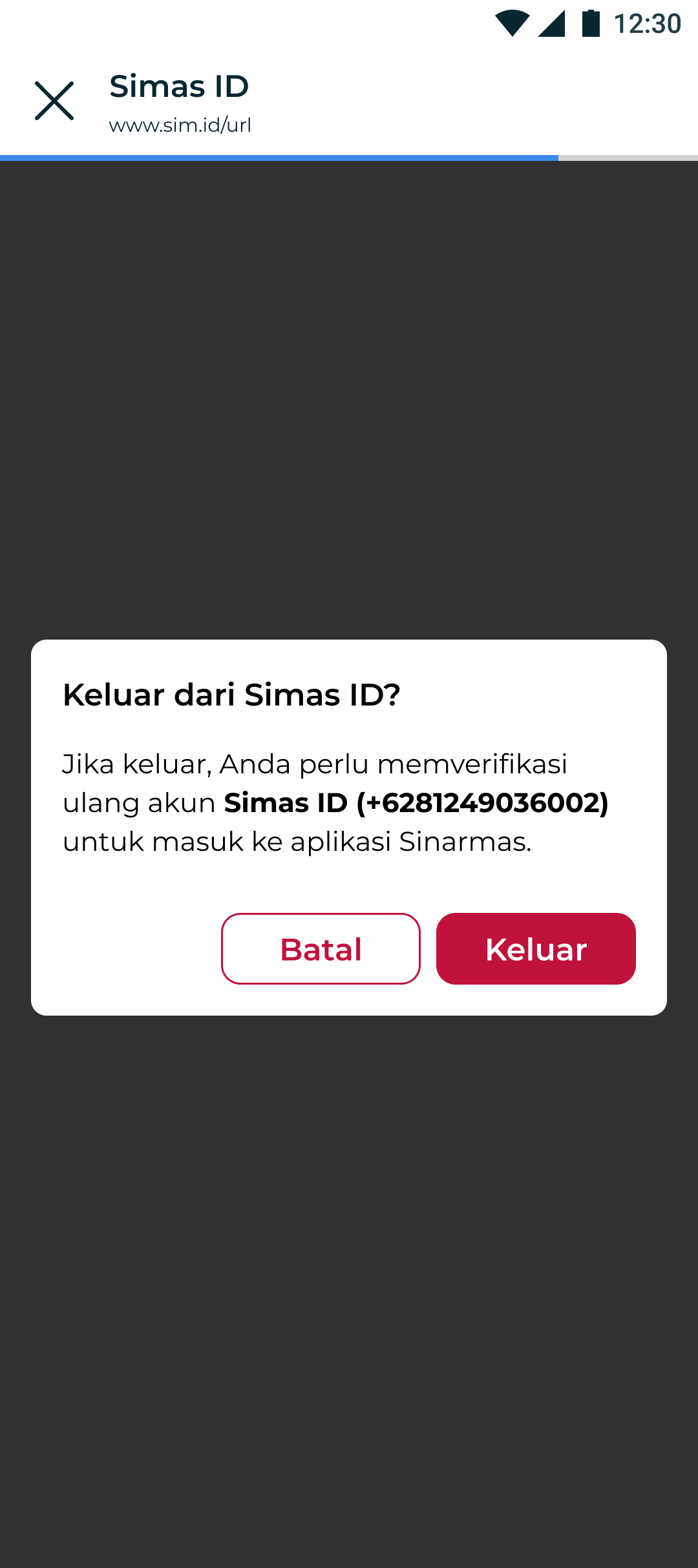
Call logoutFromSimasID(username)
This method is used to log the user out of the Simas-Id from the browser. Please provide username as required param. Username might be a phone number to be logged-out, since we support logged-in with multi phone numbers.
It is a good idea to call clearCredentials() on a successful response. This will remove your tokens that the SDK would have kept in the storage.
You can only call clearCredentials() without call logoutFromSimasID() if you just want to logout from app not from SimasID.
import {useAuth} from '@squantumengine/react-native-sqeid';

const {clearCredentials, logoutFromSimasID} = useAuth();

const onLogoutFromSimasID = () => {
    logoutFromSimasID(username).then(
      () => {
          clearCredentials();
      },
      (error) => {
          // failure flow
      }
    );
};
Change Phone Number Flow
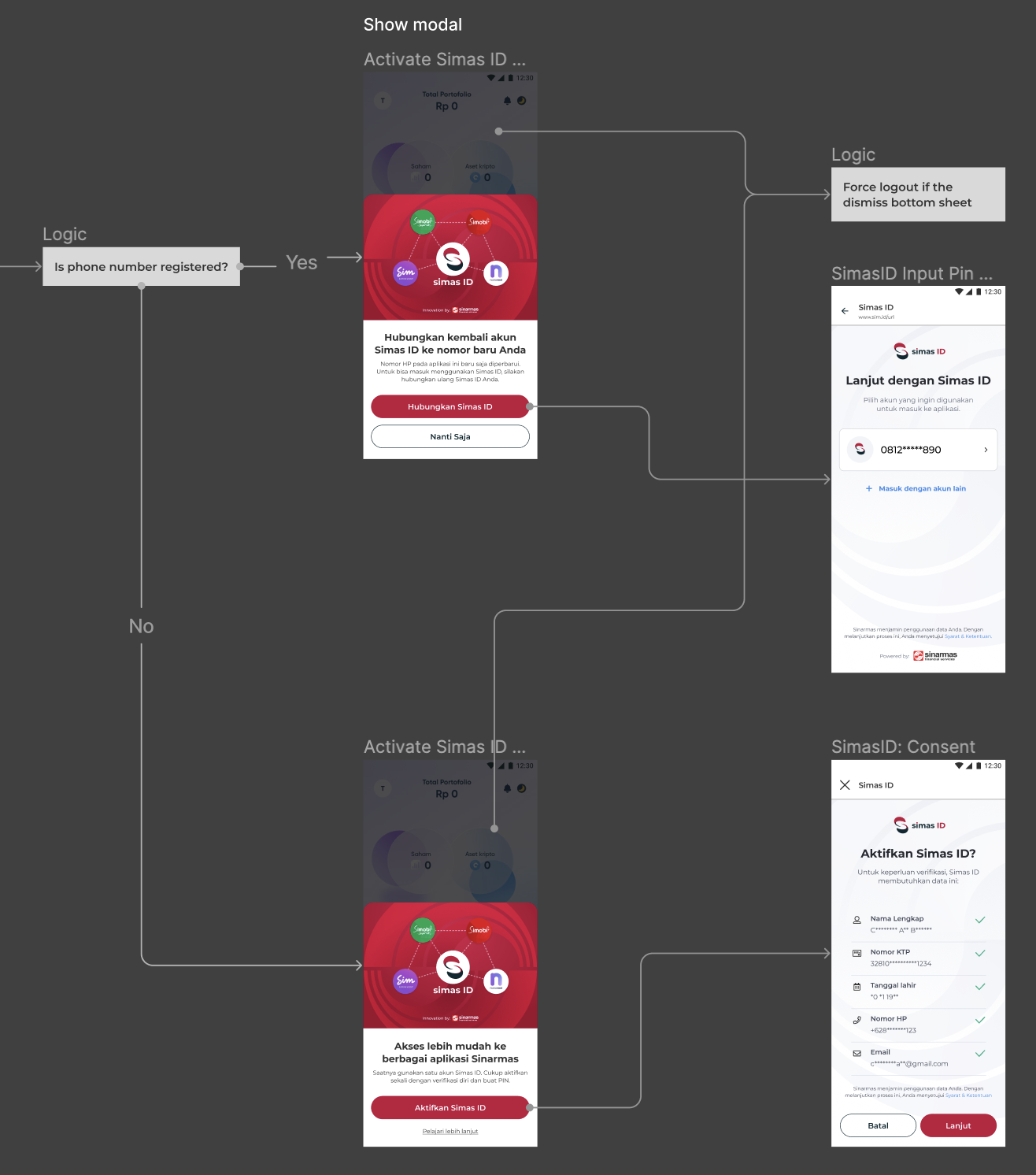
Call renewCredentialsAfterPhoneNumberChanged(updatedPhoneNumber, piiData) for renewing credentials after phone number changed.
Client should call this method after phone number changed, if not then the current credentials will be invalid.
This will check whether the updated phone number is already exist in SimasID or not, if not exist then SimasID Activation bottom sheet (“Akses lebih mudah…”) will be appeared and user will be asked to activate the new phone number, but if already exist then *SimasID Reconnect bottom sheet (“Hubungkan kembali akun…”) will be appeared and user will be asked to login with the new phone number.
It requires the following params:
-
updatedPhonenumber: Credential of the end-user who is either logged in or not logged in yet, such as user’s phone number
-
piiData: PII data from customer who has been through KYC flow, this PII data to be shared to SimasID and can be used by other BUs. Since it’s optional, if piiData is not available then just pass empty object.
- piiData is object or key-value data
Request Parameters
| Field | Value | Validation | |
|---|---|---|---|
updatedPhonenumber | “085959011905” | Required, phone number format, e.g. 08xxx, 62xxx, +62xxx. | |
piiData | {key-value} | Optional | |
| Key | Value | Validation | |
client_id | “sampleclientid“ | Required, string format | |
date_of_birth | “04-07-1988“ | Required, dd-mm-yyyy format | |
email | “christian@gmail.com” | Required, email format. | |
full_name | “Christian Ari Budiman” | Required, string format | |
nik | “3281829382931234” | Required, 16 digits format | |
phone_number | “085959011905” | Required, phone number format, e.g. 08xxx, 62xxx, +62xxx. | |
It will return the user with credentials after the flow is completed in credentialsCallback (Please see Retrieve Credentials Flow section)
User should finish the flow (activation or login) until the end to renew the credentials, if not then shouldLogout state will be updated with true, and you should force logout the user. (Please see Should Logout Flow section)
import React, { useState } from 'react';
import {useAuth} from '@squantumengine/react-native-sqeid';

const {renewCredentialsAfterPhoneNumberChanged} = useAuth();

const [piiDataObject, setPiiDataObject] = useState({
    client_id: "sampleclientid",
    date_of_birth: "02-04-1995",
    email: "john@mailinator.com",
    full_name: "John Doe",
    nik: "1234567890123456",
    phone_number: "085959011905",
});

const onPhoneNumberChanged = async (updatedPhoneNumber) => {
    renewCredentialsAfterPhoneNumberChanged(updatedPhoneNumber, piiDataObject);
};
Error Response
SDK Error Codes
| Code | Message | Description |
|---|---|---|
| network_error | The Internet connection appears to be offline. | When no internet connection |
| DATE_OF_BIRTH_INVALID | The inputted date of birth is not in the correct format; it should be in the format dd-mm-yyyy. | Invalid format date of birth format |
| NIK_INVALID | The inputted NIK is shorter than 16 digits. | must be exactly 16 digits |
| EMAIL_INVALID | The email is in an incorrect format. A valid email must include @email.com. | Invalid format email user |
| PHONE_NUMBER_INVALID | The phone number is in an incorrect format. A valid phone number should either start with '0,' be prefixed with a '+,' or begin with a country code. | Invalid format phone number |
Should Logout Flow
This is a state where user should be forced logout in case user doesn’t finish the activation / login flow after phone number changed. So this must be subscribed for avoiding invalid credentials issue.
import {useAuth} from '@squantumengine/react-native-sqeid';

const {shouldLogout} = useAuth();

seEffect(() => {
    if (shouldLogout) {
        clearCredentials();
        // Force logout user from app
    }
}, [shouldLogout]);
Forgot PIN Flow
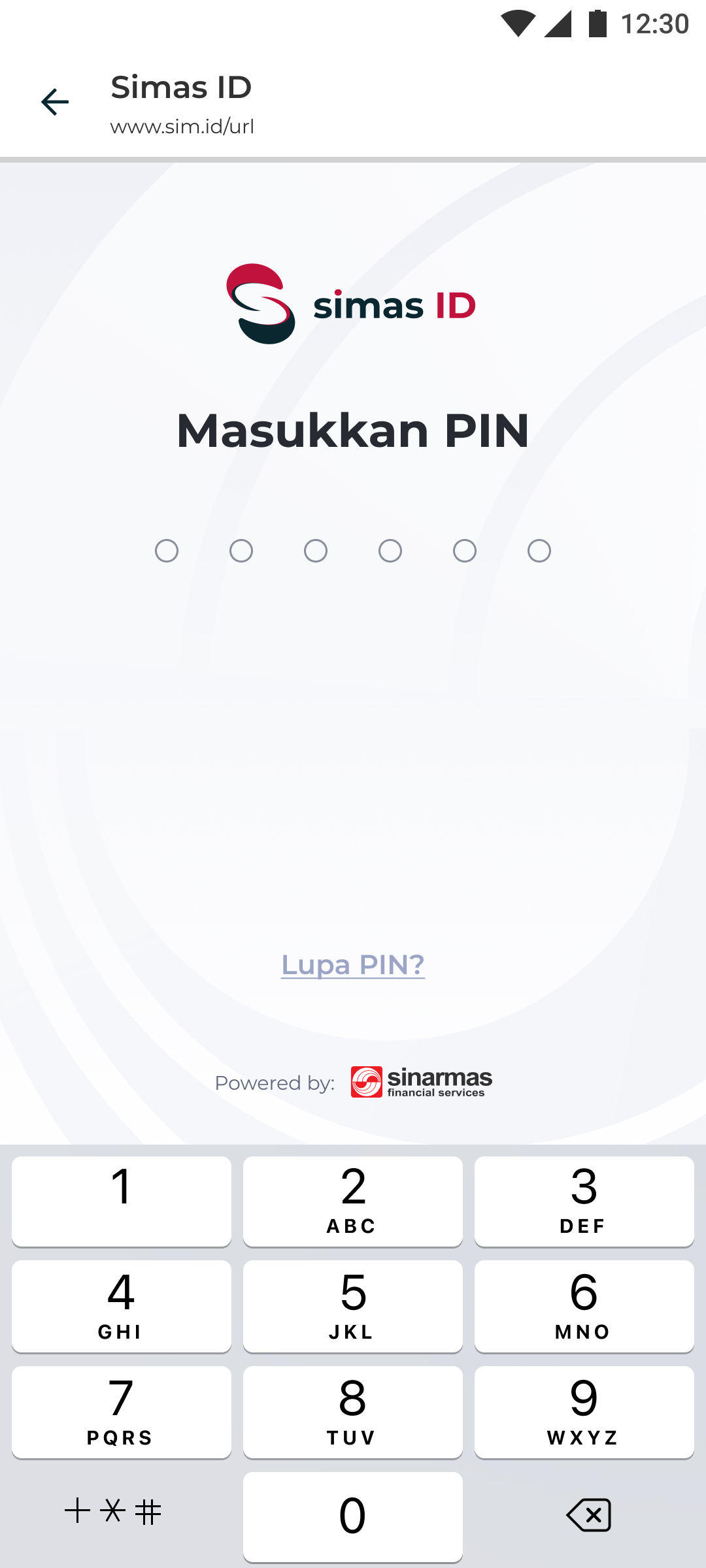 | 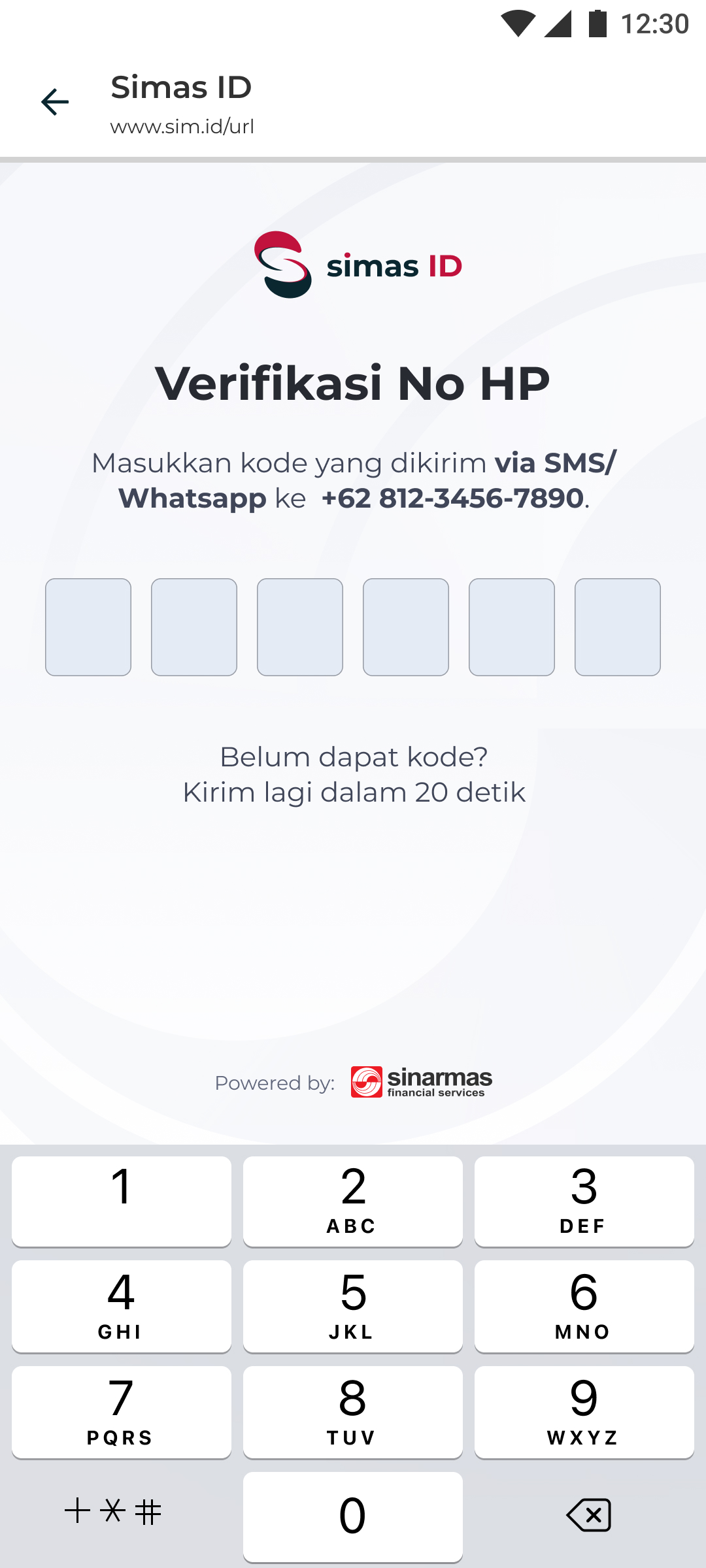 | 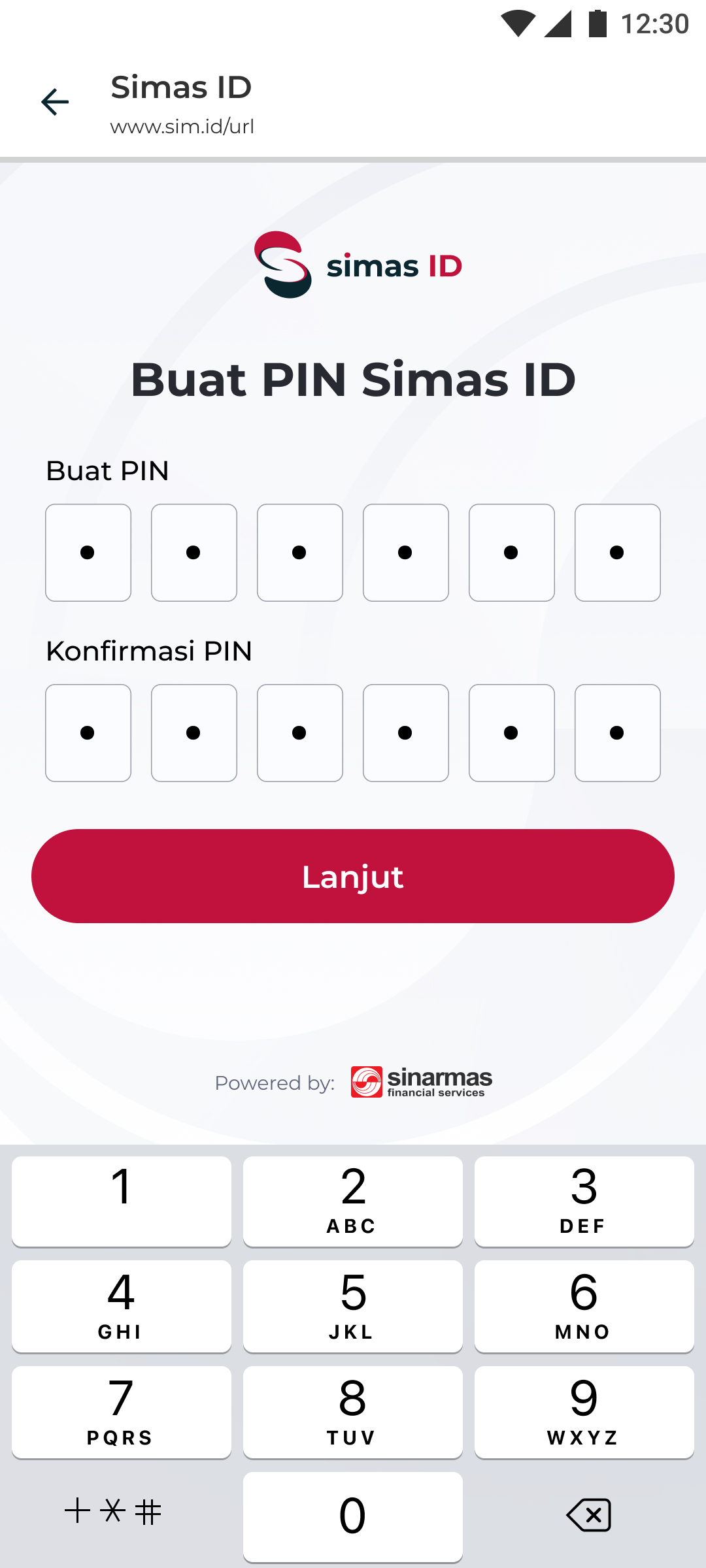 | 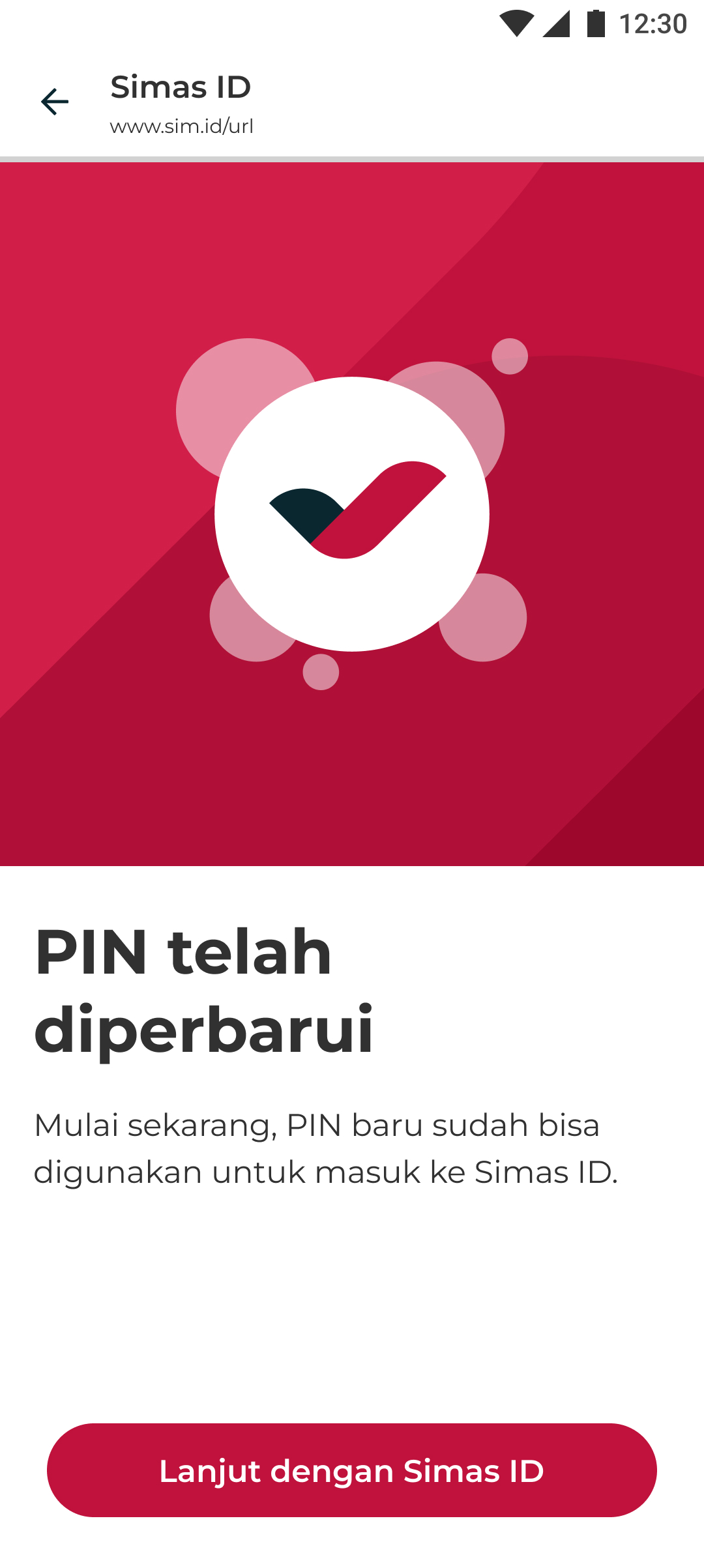 |
|---|---|---|---|
| Forgot PIN Button | OTP Validation | PIN Creation | PIN Changed Success |
This will be fully handled in Web, so there is nothing to do for the integration in app.
Use Token API
If you maintain token by your self, not using credentials methods such as saveCredentials, you still can call API for refreshing and invalidating the token by passing refresh token.
Refresh Access Token
Refresh access token is used to refresh your access token. You need to check the expiry status of access token by your self if you want to use this. But you don’t need to use this if you use our credentials methods.
import {useAuth} from '@squantumengine/react-native-sqeid';

const RefreshAccessTokenButton = () => {
    const {refreshAccessToken} = useAuth();
    return (
        <button onClick={() => {
            refreshAccessToken(refreshToken).then(credentials => {
                // Success
            }).catch(err => {
                // Failure
            })
        }}>
            Refresh Access Token
        </button>
    );
};

export default RefreshAccessTokenButton;
Sample response of the method:
{
    "expiresAt": 1688726613,
    "expiresIn": 1000,
    "idToken": "xxxxxxx",
    "accessToken": "xxxxxxx",
    "scope": "openid email profile",
    "refreshTokenExpiresIn": 604800,
    "refreshTokenExpiresAt": 1689330413,
    "tokenType": "Bearer",
    "refreshToken": "xxxxxxx"
}
Error Response
SDK Error Codes
| Code | Message | Description |
|---|---|---|
| network_error | The Internet connection appears to be offline. | When no internet connection |
BE Error Codes
| Code | Message | Description |
|---|---|---|
| unexpected_error | Something Went Wrong | Server unexpected error |
| invalid_request_body | Invalid Request, Please Check Your Request Body | Request payload is not valid |
| invalid_client_credential | Invalid Client Credentials | Your Client ID is wrong |
| invalid_user_session | Invalid login session. Please re-login | User session is invalid, user need to re-login |
| max_refresh_token_exceed | Maximum Refresh Token Limit Exceeded | Maximum refresh token threshold is exceeded |
| invalid_refresh_token | Invalid Refresh Token | You try to refresh the token but use the wrong refresh token |
| invalid_token | Token is expired | Refresh token already expired |
Invalidate Token
Invalidate token is used to invalidate your refresh token. Use invalidateCredentials() instead if you use our saveCredentials() method. An ideal scenario to use this is at the time of logout.
import {useAuth} from '@squantumengine/react-native-sqeid';

const InvalidateTokenButton = () => {
    const {invalidateToken} = useAuth();
    return (
        <button onClick={() => {
            invalidateToken(refreshToken).then(response => {
                // Success
            }).catch(err => {
                // Failure
            })
        }}>
            Invalidate Token
        </button>
    );
};

export default InvalidateTokenButton;
Sample response of the method:
{
  "timestamp": "2023-07-05T11:52:26Z"
}
Validate Token
Validate token is used to validate your access token. Use validateToken() method.
import {useAuth} from '@squantumengine/react-native-sqeid';

const ValidateTokenButton = () => {
    const {validateToken} = useAuth();

    return (
        <button onClick={() => {
            validateToken(accessToken)
              .then(response => {
                  // Success Scenario
              })
              .catch(error => {
                  // Failure Scenario
              })
        }}>
            Validate Token
        </button>
    );
};

export default ValidateTokenButton;
There will be no response for this method; instead, it uses promise, so you can still check whether it succeeded or not.
Biometric Activation Check
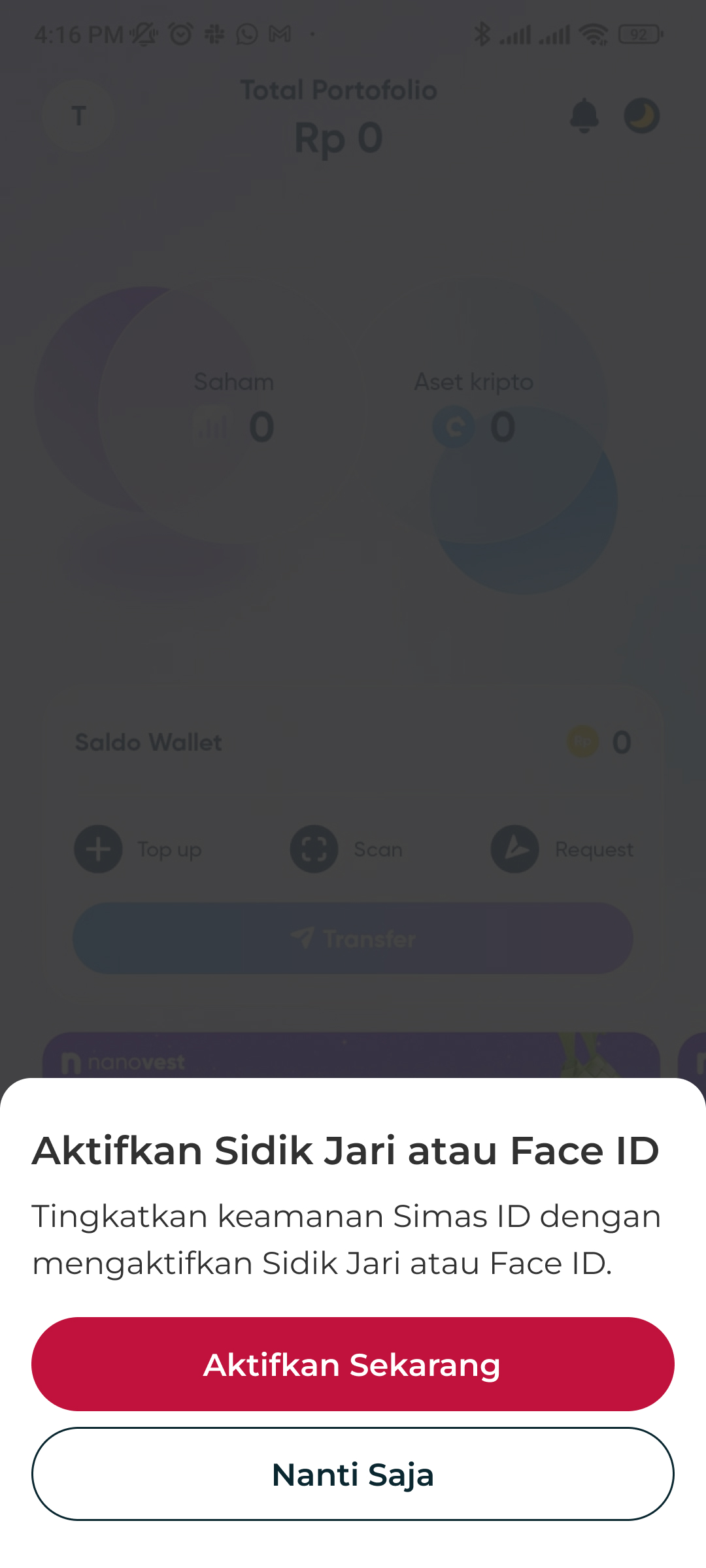 | 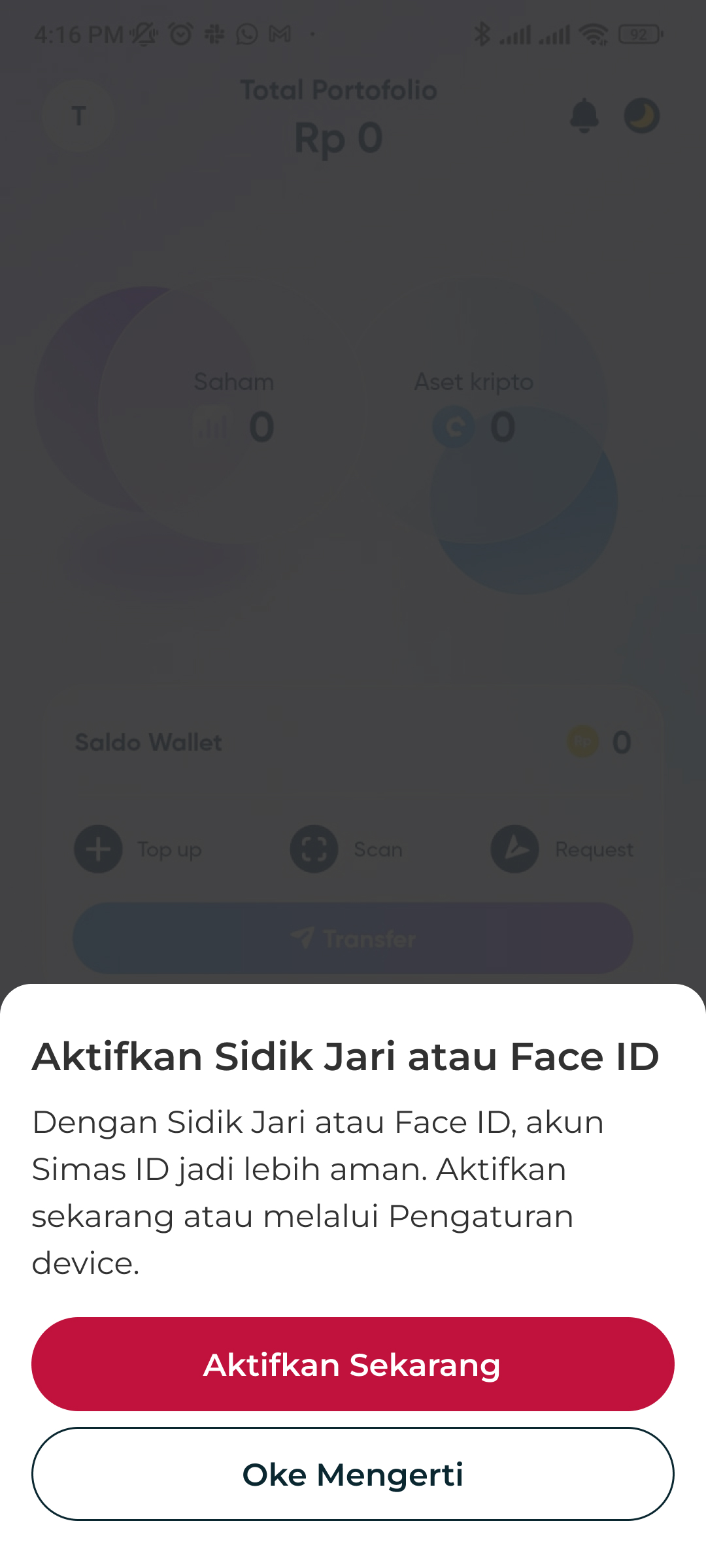 |
|---|---|
| 1st and 2nd time | 3rd time (last time) |
To check biometric activation status whether the biometric has been activated or not. If it’s not activated yet, then it will show bottom sheet (max 3 times) to encourage user to activate their biometric. It can be called anywhere such as when opening home page, profile page or somewhere else.
import {useAuth} from '@squantumengine/react-native-sqeid';

const {onCheckBiometricActivationStatus} = useAuth();

const checkBiometricStatus = async () => {
    await onCheckBiometricActivationStatus();
};
Register User ID
The registerUserId method is used to register a user with the system by linking the user's unique identifier (cuId) and user's phone number that we get from access token. Call this method only after login with SimasId or SimasId activation, so we highly suggest to call this method inside of credentialsCallback method that we already exposed to you.
import { useAuth } from '@squantumengine/react-native-sqeid';

const Register = () => {
    const { registerUserId, credentialsCallback } = useAuth();

    const handleCallbackResult = async (credentials, error) => {
    if (credentials) {
      try {
        ...
        await registerUserId(credentials.accessToken, cuId, 20000);

      } catch (errorMessage) {
        console.log('registerUserId error with', errorMessage);
      }
    } else {
        console.log('register error with', error);
    }
  };

  credentialsCallback(handleCallbackResult);
};

export default Register;
Request Parameters
| Field | Description |
|---|---|
accessToken | SQEID authorization token |
cuId | A unique identifier for the specific user |
timeoutMs | Optional parameter. If not set, the default value will be 20000 milliseconds (20 seconds) provided by the SDK. |
Sample response of the method:
{
  "message": "CUID Synced Successfully",
  "timestamp": "2024-11-06T07:39:49.392711445Z"
}
Troubleshooting
If your Android build fails with an error like:
FAILURE: Build failed with an exception.

* What went wrong:
Could not determine the dependencies of task ':app:lintVitalRelease'.
> Could not resolve all artifacts for configuration ':app:debugRuntimeClasspath'.
   > Failed to transform dd-sdk-android-core-2.0.0.aar (com.datadoghq:dd-sdk-android-core:2.0.0) to match attributes {artifactType=android-manifest, org.gradle.category=library, org.gradle.dependency.bundling=external, org.gradle.libraryelements=aar, org.gradle.status=release, org.gradle.usage=java-runtime}.
      > Execution failed for JetifyTransform: /Users/me/.gradle/caches/modules-2/files-2.1/com.datadoghq/dd-sdk-android-core/2.0.0/a97f8a1537da1de99a86adf32c307198b477971f/dd-sdk-android-core-2.0.0.aar.
         > Failed to transform '/Users/me/.gradle/caches/modules-2/files-2.1/com.datadoghq/dd-sdk-android-core/2.0.0/a97f8a1537da1de99a86adf32c307198b477971f/dd-sdk-android-core-2.0.0.aar' using Jetifier. Reason: IllegalArgumentException, message: Unsupported class file major version 61. (Run with --stacktrace for more details.)
You are using a version of Android Gradle Plugin below 5.0. To fix the issue, add in your android/gradle.properties file:
android.jetifier.ignorelist=dd-sdk-android-core