React Native SDK
Prerequisites
Contact Center for React Native iOS and Android. Before installation, you need to have clientId and wsToken (or your inbox identifier), which are mandatory to connect with your inbox using this SDK. Additionally, you need extra credentials for agent and supervisor accounts to start call interactions.
Get your SDK Config files
When you integrate SQECC Native sdk, you will need some of the details from it to communicate with it. You can get this details from any of our engineering/product representative.
You will need the following for each env (staging and production):
- Client Id
- SQE SDK Config file
- File Format: [Client Id].sqesdk.config
Install SQECC React Native SDK
Run the following command within your project directory to install the Customer Service React Native SDK.
Using Yarn:
yarn add @squantumengine/react-native-sqecc
or NPM :
npm install @squantumengine/react-native-sqecc
Configure Android Project
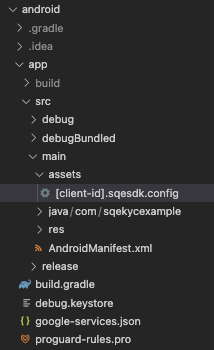
Add SDK config file in Android project
This configuration file holds encrypted settings tailored to each client. Kindly integrate the file in the Android project by including the specified configuration file. This files should be stored in assets folder of the app.
Two configuration files are supplied—one for staging and one for production. To identify the correct environment, refer to the configuration file name, as the Client Id varies for each environment.
Add Native SDK dependency
React Native SDK depends on Android Native SDK which stored in our local Maven repository. For this to work you need to specify the url to the repository in android build.gradle file:
allprojects {
    repositories {
        maven {
            url "file://${rootDir}/../node_modules/@squantumengine/react-native-sqecc/android/repo"
        }

        google()
        mavenCentral()
        jcenter()
    }
}
Configure iOS Project
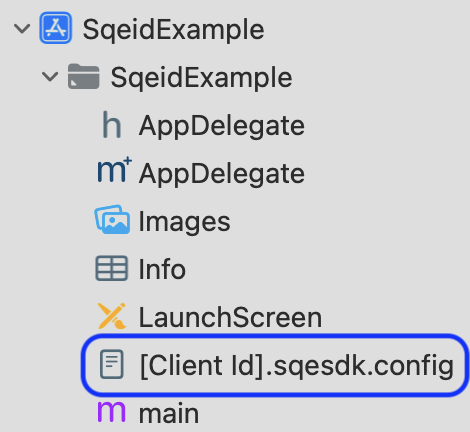
Add SDK config file in xcode project
This config file contains encrypted configs which specific for every client, so please attach the file into your xcode project by addding the given config file in the project.
There are two provided config files (1 for staging and 1 for production), you can refer to the config file name to find correct env, since the Client Id for every env is different.
Device Permissions and Foreground Service Setup
Certain actions during chat activity may require specific device permissions (e.g., camera or microphone access). Use the following configuration template for setup.
Android
For some actions during chat activity might require specific device permission (e.g camera access or microphone). You can utilize the following configuration template for setting up.
Also, you need to add id.co.sqe.ccsdk.foregroundService.MicForegroundService. This service is required to handle microphone and camera operations when the app goes to background, ensuring a seamless user experience.
<manifest xlmns:android...>
 ...
  <uses-permission android:name="android.permission.INTERNET" />
  <uses-permission android:name="android.permission.CAMERA" />
  <uses-permission android:name="android.permission.VIDEO_CAPTURE" />
  <uses-permission android:name="android.permission.AUDIO_CAPTURE" />
  <uses-permission android:name="android.permission.RECORD_AUDIO" />
  <uses-permission android:name="android.permission.MODIFY_AUDIO_SETTINGS" />
  <uses-permission android:name="android.permission.READ_EXTERNAL_STORAGE" />
  <uses-permission android:name="android.permission.POST_NOTIFICATIONS"/>
  <uses-permission android:name="android.permission.WAKE_LOCK"/>
  <uses-permission android:name="android.permission.FOREGROUND_SERVICE" />
  <uses-permission android:name="android.permission.FOREGROUND_SERVICE_MICROPHONE" />
  <uses-permission android:name="android.permission.FOREGROUND_SERVICE_CAMERA" />
 <application ... >

  <service android:name="id.co.sqe.ccsdk.foregroundService.MicCameraForegroundService"
    android:foregroundServiceType="microphone|camera"
    android:exported="false"/>

  <service android:name="id.co.sqe.ccsdk.foregroundService.MicForegroundService"
    android:foregroundServiceType="microphone"
    android:exported="false"/>

  </application>
</manifest>
iOS
You need to make some code changes and add permissions.
Add Pre-install Setup in Your Podfile
pre_install do |installer|
  $dynamic_frameworks = [
      'DatadogCore',
      'DatadogInternal',
      'DatadogLogs'
  ]
Add Post-install Setup in Your Podfile
post_install do |installer|

  $datadog_frameworks = [
    'DatadogCore',
    'DatadogInternal',
    'DatadogLogs'
  ]
  installer.pods_project.targets.each do |target|
    if $datadog_frameworks.include?(target.name)
      target.build_configurations.each do |config|
        config.build_settings['BUILD_LIBRARY_FOR_DISTRIBUTION'] = 'YES'
      end
    end
  end
Add Permission Request in Your Info.plist
<key>NSMicrophoneUsageDescription</key>
<string>We need microphone access for voice call</string>
<key>NSCameraUsageDescription</key>
<string>We need camera access for video call</string>
<key>UIBackgroundModes</key>
<array>
	<string>audio</string>
</array>
Usage
Initialization
You need to initialize the SQECC SDK before using other methods. You can do this by calling initializeSQECC.
// YourScreen.tsx
import * as React from 'react';
import { StyleSheet, Text, View } from 'react-native';
import { Sqecc } from '@squantumengine/react-native-sqecc';

const Index = ({ navigation }: any) => {
  const { initializeSQECC } = Sqecc();

    const onInitSDK = async () => {
      try {
        await initializeSQECC({
          clientId,
          wsToken,
          name,
          phone,
          email,
          guestMode,
          metaData,
        });
      } catch (error) {
        // Handle SDK initialization errors properly
        console.error("SQECC Initialization Error:", error);
      }
    };

  return (...)
};

export default Index;
Note: Please ensure you are using the correct wsToken for the functionality you intend to use — for example, voice call or manual KYC may require different wsToken values. Using an incorrect token may result in unexpected behavior or failure to establish a session.
Request Parameters
| Field | Description |
|---|---|
clientId | Required. Provided by the SQECC engineering/product representative. |
wsToken | Required. Inbox identifier to connect chat with your inbox. |
name | Required. Must be alphanumeric (no special characters). Can be the user's profile name. |
phone | Required. Can be the user's profile phone number. |
email | Required. Can be the user's profile email address. |
guestMode | A boolean value that determines whether the user wants to make a call as a guest. |
metadata | Optional. An object containing additional user profile details. |
Note: Make sure to handle errors properly, as initializeSQECC returns a Promise.
Subscription for Config Callback
Listen for configuration values needed before making a call (e.g., available languages/skills). The function returns an unsubscribe handler—register it in a React useEffect and clean up on unmount. The callback provides an array of skill objects containing code and display.
// YourScreen.tsx
import React, { useEffect } from 'react';
import { Sqecc } from '@squantumengine/react-native-sqecc';

const Index = () => {
  const { subscribeSqeccConfigCallback } = Sqecc();

  useEffect(() => {
    const unsubscribe = subscribeSqeccConfigCallback((skills: any[]) => {
      // Handle empty skill list appropriately
      if (!skills || skills.length === 0) {
        console.warn('No available agent skills received.');
        return;
      }

      // Example mapping available languages
      const languages = skills.map((item: any) => ({
        label: item.display,
        value: item.code,
      }));
      // setLanguages(languages)
    });

    return () => unsubscribe();
  }, []);

  return (...);
};

export default Index;
Important: The skills field is optional and may return undefined or an empty array. Please make sure to check its presence before using it, to avoid app crashes or runtime errors when mapping or accessing its values.
Response
| Field | Description |
|---|---|
data | |
Make Up Call
Once initialization is successful, you can use the call method to create a voice call, either as a new call or to rejoin an existing one.
// YourScreen.tsx
import * as React from 'react';
import { StyleSheet, Text, View } from 'react-native';
import { Sqecc } from '@squantumengine/react-native-sqecc';

const Index = ({ navigation }: any) => {
  const { call } = Sqecc();

    const onMakeUpCall = async () => {
    try {
      await call(languageCode);
    } catch (error) {
      // Handle Error Create CaLL
    }
  };

  return (...)
};

export default Index;
Request Parameters
| Field | Description |
|---|---|
languageCode | A string obtained after subscribing to subscribeSqeccConfigCallback. |
Display SDK Screen
Use the ContactCenterScreen component from SQECC to display the SDK screen. You need to wrap it inside a container.
// YourScreen.tsx
import * as React from 'react';
import { StyleSheet, Text, View } from 'react-native';
import { ContactCenterScreen } from '@squantumengine/react-native-sqecc';

const ContactCenterNativeScreen = ({ navigation }: any) => {
  const onCloseSdkView = () => {
    navigation.navigate("screenName");
  };

  return (
    <View style={styles.container}>
      <ContactCenterScreen onClose={() => onCloseSdkView()} />
    </View>
  );
};

const styles = StyleSheet.create({
  container: {
    flex: 1,
    backgroundColor: '#ffffff',
  },
});

export default ContactCenterNativeScreen;
Request Property
| Field | Description |
|---|---|
onClose | Required property that determines which screen to navigate to after the SDK screen is closed, whether the call has ended or the user manually closed the SDK via the close button. Since App navigation is managed by client. Client needs to decide which screen to be landed after user closes. By default, if it is not implemented, users will be navigated nowhere. |
Mandatory : You must set gestureEnabled: false when using ContactCenterScreen.
Leaving gesture navigation enabled will lead to an inconsistent and potentially broken user experience. For example, users might accidentally dismiss the screen (and abruptly end the call) by swiping back — without any prior confirmation.
// YourScreen.tsx
import * as React from 'react';
import { NavigationContainer } from '@react-navigation/native';
import { createNativeStackNavigator } from '@react-navigation/native-stack';
import ContactCenterNativeScreen from './screens/ContactCenterNativeScreen';

function App(): JSX.Element {
  return (
    <NavigationContainer>
      <Stack.Navigator>
        <Stack.Screen
          options={{
            headerShown: false,
            gestureEnabled: false, // Mandatory: Prevents accidental dismissal during call
          }}
          name="ContactCenterNativeScreen"
          component={ContactCenterNativeScreen}
        />
      </Stack.Navigator>
    </NavigationContainer>
  );
}

export default App;
Subscription for Error Callback
Listen for SDK errors (e.g., permission denied, API or WebSocket failures). The function returns an unsubscribe handler—register it in a React useEffect and clean up on unmount.
// YourScreen.tsx
import React, { useEffect } from 'react';
import { Alert } from 'react-native';
import { Sqecc } from '@squantumengine/react-native-sqecc';

const Index = () => {
  const { subscribeSqeccErrorCallback } = Sqecc();

  useEffect(() => {
    const unsubscribe = subscribeSqeccErrorCallback((error: any) => {
      // Handle error statuses (e.g., show an alert/logging)
      Alert.alert('SQECC Error', error?.message || 'Unexpected error');
    });

    return () => unsubscribe();
  }, []);

  return (...);
};

export default Index;
Response
| Error | Message |
|---|---|
AudioPermissionError | Audio permission is not allowed |
VideoPermissionError | Video permission is not allowed |
APIError | There is API error. |
DataError | Required data is not provided. |
WebSocketError | There is WebSocket error. |
Subscription for Event Callback
Subscribe to SDK lifecycle events (e.g., feedback submitted). This returns an unsubscribe function—register it inside a React useEffect and clean up on unmount.
// YourScreen.tsx
import React, { useEffect } from 'react';
import { Alert } from 'react-native';
import {
  Sqecc,
  SqeccCallbackEvent,
  SqeccCallbackData,
} from '@squantumengine/react-native-sqecc';

const Index = () => {
  const { subscribeSqeccEventCallback } = Sqecc();

  useEffect(() => {
    const unsubscribe = subscribeSqeccEventCallback((data: SqeccCallbackData) => {
      // Handle SDK events
      if (data.event === SqeccCallbackEvent.END_FEEDBACK_JOURNEY) {
        Alert.alert('Feedback Submitted', `event: ${data.event}`);
      }
    });

    return () => unsubscribe();
  }, []);

  return (...);
};

export default Index;
Response
| Event | Message |
|---|---|
END_FEEDBACK_JOURNEY | Emitted after the user submits feedback in the SDK screen. |